I used to treat my Wi-Fi router like a toaster. I plugged it in, waited for the lights to blink, and forgot about it. Then one day I noticed a strange device connected to my network. That moment pushed me to learn how to secure home WiFi network from hackers the right way.
Now it’s part of my home routine—like locking my front door at night. If you use online banking, stream movies, work remotely, or have smart home gadgets, your Wi-Fi isn’t just internet. It’s your digital front door.
Here’s how I protect mine—and how you can protect yours without turning into a tech expert.
Why Should You Even Care About How to Secure Home WiFi Network From Hackers?
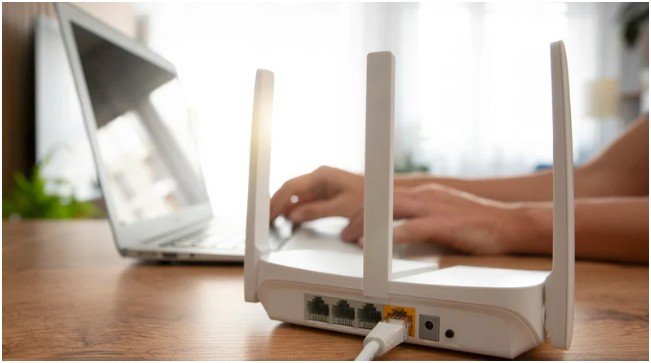
When I first researched this, I assumed hackers only targeted big companies. I couldn’t have been more wrong. Most attacks target regular homes because weak routers make easy targets.
If someone connects to your network, they don’t just use your bandwidth. They can monitor traffic, try to steal passwords, or infect connected devices. Everything traces back to your IP address. That alone convinced me to take this seriously.
Think of your Wi-Fi like your mailbox. You wouldn’t leave it unlocked with sensitive mail inside. Your router deserves the same level of attention.
What’s the First Thing I Changed When Learning How to Secure Home WiFi Network From Hackers?

The first thing I did shocked me. I logged into my router and saw the admin username still set to “admin.” The password? Also “admin.”
That’s when I realized hackers don’t need genius skills. They just try common defaults.
I changed two passwords immediately:
- The admin password (this controls router settings).
- The Wi-Fi password (this connects devices).
These are not the same thing. Most people change only the Wi-Fi password. If someone controls your admin dashboard, they can undo everything else.
I also renamed my network. I removed the router brand name and replaced it with something neutral. Hackers often scan for specific models to exploit known flaws.
Am I Using the Right Encryption or Am I Living in 2008?
After passwords, I checked encryption. My router offered WPA3 and WPA2.
If your router supports WPA3, use it. It’s the strongest standard available. If not, WPA2-AES works well. Avoid WEP or basic WPA. They crack easily.
I also updated my router firmware. Manufacturers release patches regularly, just like phone updates. I turned on automatic updates so I don’t forget.
Here’s how I think about it:
| Setting | What I Use | Why |
| Encryption | WPA3 | Strongest current protection |
| Firmware | Auto updates | Fixes vulnerabilities |
| Firewall | Enabled | Blocks unauthorized traffic |
These three settings alone dramatically improve your security.
What Convenience Features Did I Turn Off (And Why)?
Convenience can create backdoors.
I disabled WPS (Wi-Fi Protected Setup). The one-button connect feature feels handy, but attackers exploit its PIN system.
I also turned off UPnP. It allows devices to open ports automatically. Malware can abuse that freedom.
Then I disabled remote management. I don’t need to control my router from outside my house, so I removed that risk entirely.
Small changes. Big impact.
Do Guest Networks Really Matter?

Yes. And I didn’t realize why until I read more.
When friends visit, I give them access to my guest network—not my main one. I also connect smart home devices like my thermostat and smart TV to that guest network.
Why? Because if one device gets infected, it won’t spread malware to my laptop or work computer.
It’s like keeping your valuables in a safe room instead of the living room.
How to Secure Home WiFi Network From Hackers: My Step-by-Step Routine
Here’s the exact habit-based routine I follow every few months:
Step 1: Log into the router dashboard.
I type 192.168.1.1 or 192.168.0.1 in my browser. Your router label usually lists this information.
Step 2: Change the admin password.
I create a 16–20 character password using a password manager. No reused passwords.
Step 3: Rename the SSID and update the Wi-Fi password.
I avoid personal info or router brand names. I use a strong passphrase instead of random letters so I can remember it.
Step 4: Check encryption settings.
I confirm WPA3 (or WPA2-AES if needed).
Step 5: Disable WPS, UPnP, and remote management.
I double-check each toggle.
Step 6: Enable firewall and automatic firmware updates.
I never skip updates.
Step 7: Review connected devices.
I scan the list and remove anything unfamiliar.
This entire process takes about 15 minutes. I schedule it twice a year—like a digital spring cleaning.
Does Router Placement Actually Make a Difference?
Yes. I used to keep my router near a window.
Now I place it in the center of my home. This reduces signal leakage outside my walls. It also improves performance indoors.
If I travel for an extended time, I turn off the router completely. No signal means no target.
Physical security matters more than most people realize.
How Do I Know If Someone Is Already on My Network?
I check the connected devices list regularly.
If I see unknown devices, I change my Wi-Fi password immediately and reboot the router. Then I reconnect trusted devices manually.
You can also watch for slow speeds or unfamiliar network activity. While those signs don’t guarantee hacking, they tell you to investigate.
Staying aware keeps you ahead.
FAQs About How to Secure Home WiFi Network From Hackers
1. How often should I update my router settings?
I review mine every six months. If my internet provider pushes a firmware update notification, I install it immediately. Treat your router like your smartphone—it needs maintenance. You don’t have to obsess over it weekly, but don’t ignore it for years either.
2. Is WPA2 still safe?
Yes, if you use WPA2 with AES encryption. It still protects most home networks well. However, if your router supports WPA3, upgrade to it. WPA3 provides stronger protection against password guessing attacks and improves overall security.
3. Do I need to replace my router?
If your router doesn’t support WPA2-AES or WPA3, or if it hasn’t received updates in years, replace it. Older routers lack modern security protections. I upgraded mine after realizing the manufacturer stopped issuing patches.
4. Is MAC address filtering worth it?
It adds a small extra layer. However, skilled attackers can spoof MAC addresses. I treat it as a bonus feature—not a primary defense. Strong passwords and encryption matter far more.
Key Takeaways: How to Secure Home WiFi Network From Hackers
When I learned how to secure home WiFi network from hackers, I realized it doesn’t require technical genius. It requires awareness and consistency.
Change default credentials.
Use strong encryption.
Disable risky features.
Update firmware.
Use a guest network.
Check connected devices.
These simple habits protect your family, finances, and privacy.
Wi-Fi Isn’t Just Internet — It’s Your Digital Front Door
Now that I understand how to secure home WiFi network from hackers, I treat my router like a security system.
I don’t stress about it. I just maintain it. Twice a year, I run through my checklist, update what needs updating, and move on with my life.
Your home Wi-Fi should feel safe, not vulnerable.
Lock your digital front door today—and sleep better tonight.